Migrating Your Data to Swell.is platform
Flexiport.ai step-by-step guide.
Prepare Your Data Files
First, get your existing store data ready in digital formats that our system can analyze:
- Supported Formats:
CSV,ExcelorJSON - Separate by Type: Prefer separate files for data of different nature:
customers.csv- Customer accountsorders.csv- Order history
- Headers Required:Include clear column titles like "Product Name", "SKU", "Price" in CSV or Excel files
- Data Location: Keep data in the files themselves, not at external resources
- Images: URLs to images are the only external references we can process
- Complete Data: For simplest migration, include all data you want transferred
Tip for developers: You can upload sample data to review the mapping and get Python code to process your full dataset locally. Note this path requires technical expertise and writing your own Swell loading script.
Start Your Swell Migration Pipeline
With your data files ready, let's begin the migration process:
- Visit flexiport.ai/start
- Select Swell.is as your destination platform
- Upload your prepared data file(s)
- In the right panel, check the boxes for the data types included in your files:
- Products
- Customers
- Other applicable data types
- Click Continue
Choose Your Plan
After initial configuration, you'll need to select a plan that fits your migration needs:
Basic Plan
- Limited customization options
Advanced Plan (Recommended)
- Full access to review and customize data mapping
- AI Assistant to help with complex transformations
During the Beta phase, we are waiving fees for all migrations. You can choose Advanced plan without charge.
Automated Analysis & Quality Review
Now it's time to let our system work its magic. Here's what happens behind the scenes:
The Process
- Smart Analysis:Our system examines your data structure and intelligently maps it to Swell's format (approximately 30 minutes)
- Quality Control: During Beta, our team reviews the mapping to ensure resulting data quality
- Email Notification: You'll receive an email when your pipeline is ready
Note: We verify every pipeline manually during the beta, and the review stage may take from hours to a couple of business days.
Review and Refine Your Data Mapping
Once notified, you can review and customize how your data will be structured in Swell:
- Go to flexiport.ai/pipes
- Find your Swell migration pipeline
- Navigate to the Advanced Tools section
Understanding the Mapping Interface
- Provides Source-to-Destination and Destination-to-Source views
- Source columns (properties) has a blue color code
- Destination (Swell) properties has a green color code
- Hover over property names for descriptions and sample values
- Enable Unused Source or Swell properties view in the filter

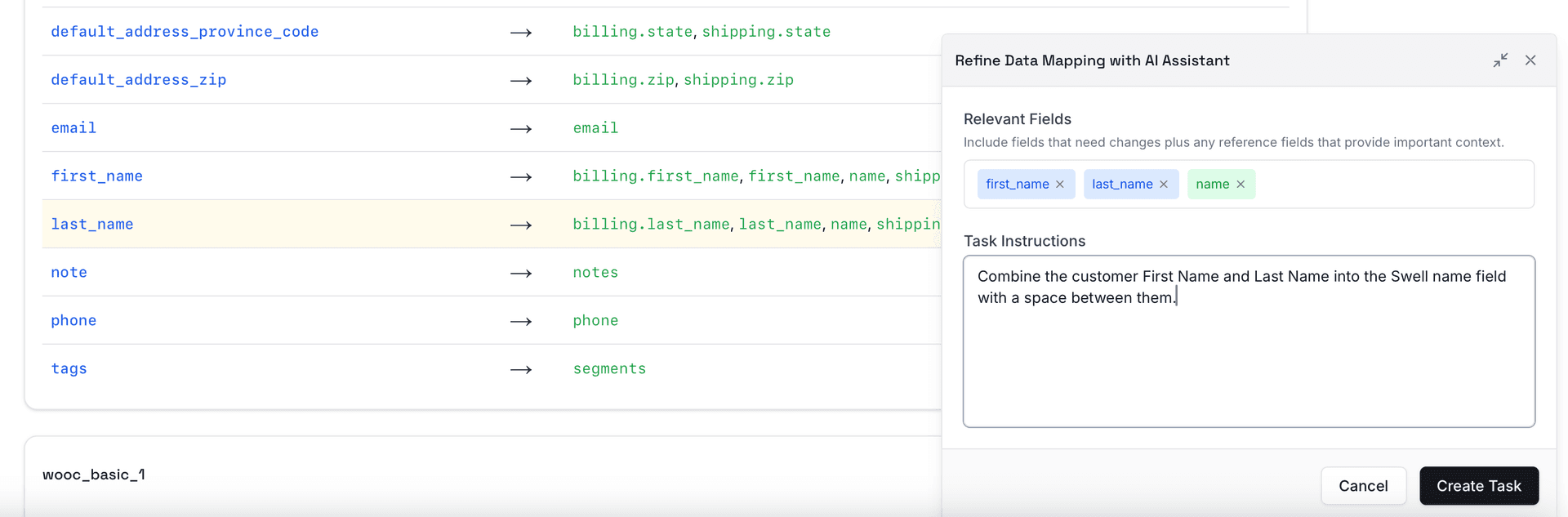
Making Changes with the AI Assistant
Need to adjust the mapping? Our AI Assistant can help:
- Click the AI button next to fields you want to modify
- Add multiple fields to build context for your changes by clicking their AI buttons too
- In the task window, describe what you want in plain English:"Combine the 'First Name' and 'Last Name' columns into the Swell 'name' field with a space between them."
- Click Create Task and wait for the AI to implement your changes (usually under a minute)
- When the task complete, it will update your Source & Destination mapping views
- You can add multiple tasks to your queue while previous ones are processing
Load Your Data into Swell
- Install the Flexiport Swell App:
- Log in to your Swell admin dashboard
- Navigate to the Integrations tab
- Search for "Flexiport.ai" and install it
- Copy Your Pipeline Access Key:
- Go to your pipeline details page in Flexiport.ai
- Find and Copy the pipeline access key (you'll need it for the Swell app)
- Set Up Your Import:
- Click on Flexiport.ai in your Swell admin sidebar
- Click Create New Import
- Paste your Pipeline Data Access Key and Save Import
- Start the Import Process:
- Wait a moment for the app to connect to Flexiport
- Refresh the page to see your data collections listed
- Toggle Start Importing to ON and Save again
- Import Progress:
- The process runs in the background
- Import time varies based on data size (minutes to hours)
- Refresh the page occasionally to check progress
After Migration & Support
- Verify Your Data: Browse through your Swell store to ensure everything appears correctly
- Data Removal: Need to remove imported data? Contact our support team
- Support: Still need help? Reach out to our team